

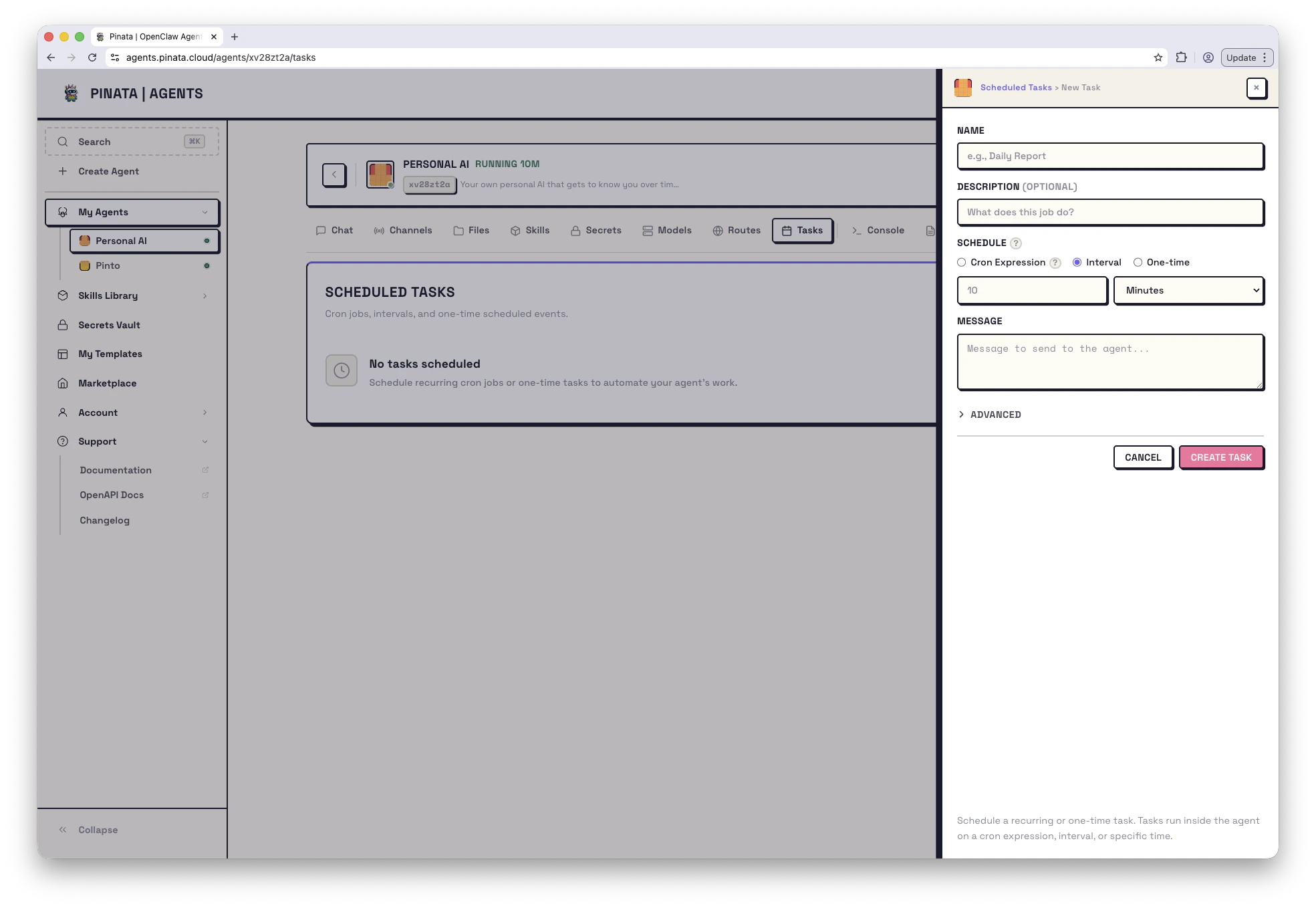
Create a task
Open your agent → Tasks → + ADD. The dialog asks for:- Name — anything readable, e.g.
daily-check-in - Schedule — when it runs
- Prompt or system event — what gets delivered to the agent
- Delivery (optional) — where the response goes if you want it to leave the agent
Schedule types
You have three choices forschedule.kind:
-
Cron — standard cron expression. Most flexible.
-
Every — run every N milliseconds. Set
staggerMsif you want to randomize the start offset so multiple tasks don’t fire at the same instant. - At — run once at a specific ISO timestamp.
tz) so cron respects DST and local time. Minimum interval across all kinds is 1 minute — anything tighter is rejected.
What gets delivered
Two payload kinds:-
agentTurn(default) — your task fires a chat message. The agent treats it like a regular conversation turn. You can pin a specificmodel, toggle reasoning on or off viathinking, and set atimeoutSeconds. Good prompts to schedule:“Check my portfolio and summarize anything that moved more than 5% today.” “Generate the weekly status report from the work log.”
-
systemEvent— fires a system event instead. The agent sees it as a non-conversational trigger. Useful for heartbeats, periodic maintenance, or anything you don’t want polluting the chat history.
Where the response goes
By default, the response lands back in the agent’s main conversation. If you want it to go somewhere else:-
Announce to a channel — send the response to Telegram, Slack, or Discord. Set
delivery.modetoannounce, plus a channel and recipient. Good for alerts or daily standups. -
Webhook — POST it to a URL. Good for hooking into other services.
bestEffort: true in delivery if you’d rather swallow a delivery failure than mark the whole run as failed.
Sessions: main vs isolated
A task can run in the agent’s main conversation (so its output is part of the running chat history) or in an isolated session of its own. Pick one withsessionTarget:
main— output joins the live conversationisolated— one-off session that doesn’t touch the main thread. Good for batch jobs and webhook-style work.
Wake mode
wakeMode controls timing:
now(default) — fire the task at the scheduled time, even if the agent is busynext-heartbeat— wait for the next heartbeat tick. Useful for low-priority background work.
Managing tasks
Each task in the list has:- Run now — fire it immediately, doesn’t affect the schedule
- Enable / disable — pause without deleting
- Edit — change schedule, prompt, or delivery
- Delete — remove it
- Runs — open the run history
From the CLI
Limits and gotchas
- 20 tasks per agent
- Minimum interval 1 minute
- A task that runs longer than
timeoutSeconds(or 5 minutes if unset) is cancelled and marked failed - Tasks survive agent restarts. Schedules that would have fired during downtime are skipped, not queued.