

Connect a provider
You don’t strictly need one — the Create Agent wizard offers a Free tier option that runs your agent on a shared, rate-limited model with no key at all. But connecting your own provider unlocks full model quality, context, and rate limits, and it’s how a free-tier agent upgrades later. Open the Secrets Vault. The row at the top — AI PROVIDERS — has a card for each supported provider:
Cards that aren’t connected show a CONNECT button. Click it, follow the prompts, save. The card flips to Connected.
You can connect more than one provider — useful for fallbacks, or for routing different agents to different LLMs.
The Pinata provider is first-party — connecting it enables Pinata-hosted inference for your account, no API key required. You can also toggle it programmatically with the enable/disable endpoints (see Inference → Enable and Disable).
Add other secrets
For everything that isn’t a provider key — bot tokens, third-party API keys, database URLs — use New Secret at the top right of the Vault. The dialog asks for:- A name (this is the environment variable, like
TELEGRAM_BOT_TOKEN) - A value
- A type —
secretorvariable
process.env.TELEGRAM_BOT_TOKEN (or the equivalent in Python, Bash, etc.) on next restart.
Secret vs variable
Both become env vars. The difference is encryption:- Secret — encrypted at rest, never returned in API responses. Use for anything sensitive: keys, tokens, passwords.
- Variable — stored as plaintext, value returned in listings. Use for non-sensitive config — public URLs, feature flags.
Importing a .env
Have a .env file already? The New Secret menu has an Import .env option that adds every line in one go.
Make a secret available to an agent
Saving a secret in the Vault doesn’t automatically give it to every agent. You attach secrets per-agent — that way you can give different agents different credentials.- When creating an agent: step 3 of the wizard (“Connect”) lets you pick which secrets to attach.
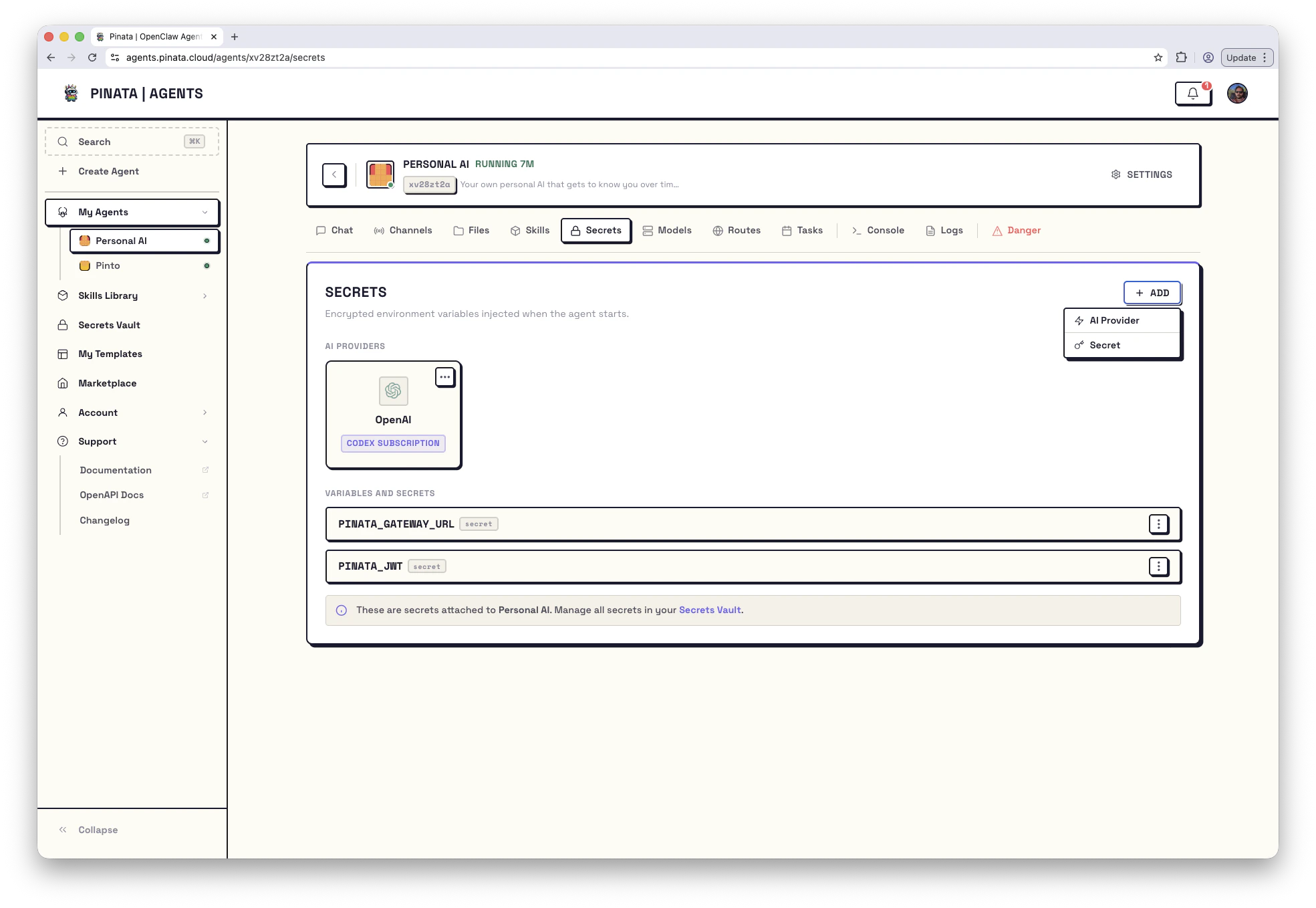
- For an existing agent: open the agent → Secrets → + ADD and pick from your Vault.
- AI Providers — the providers you’ve connected. Each card shows whether it’s an
API KEYconnection or aCODEX SUBSCRIPTION. - Variables and Secrets — the non-provider secrets you’ve attached.
When you add or update a secret on a running agent, restart the gateway so the agent picks up the new value. The Danger tab shows a per-secret Synced indicator so you can tell whether you’ve already done that.
Updating, removing, and edge cases
- Click the ⋯ menu on any secret to update its value or delete it.
- You can’t delete a secret that’s still attached to an agent — detach it first, or you’ll get a
409 Conflict. - Updating a value doesn’t roll out automatically — restart the gateway.
- Attaching two credentials for the same provider (say, an OpenAI API key and a Codex subscription) returns a
409 Conflict. Pick one.
From the CLI
How secrets are protected
- Encrypted with AES-GCM using a key derived per user
- Values are never returned by the API after creation
- Injected as environment variables at container start, never written to disk
- The per-agent gateway token is generated automatically and can be rotated from the Danger tab